When it comes to keeping your laptop screen in top condition, using the correct cleaning methods is crucial. Ensuring that you have the right tools and techniques can make a significant difference in the longevity of your screen. By following a few simple steps, you can maintain a clear and pristine display that enhances your overall user experience.
Choosing the Right Cleaning Supplies
To effectively clean your laptop screen, gather the appropriate supplies such as a microfiber cloth and a gentle screen cleaner solution. These supplies are essential in maintaining the quality of your screen and preventing damage. The microfiber cloth is soft and won’t scratch the screen, making it ideal for wiping away dust and smudges. Avoid using paper towels or rough fabrics that could potentially harm the screen’s surface. When choosing a screen cleaner solution, opt for one specifically designed for electronic devices to ensure it’s safe for your laptop screen.
It is crucial to check the ingredients of the cleaner to avoid any harsh chemicals that could cause damage. Some cleaners contain alcohol or ammonia, which can strip the protective coating off the screen. Instead, look for a cleaner that’s alcohol-free and ammonia-free to keep your laptop screen in top condition. Remember, using the right cleaning supplies is key to preserving the longevity and clarity of your laptop screen.
Proper Techniques for Cleaning
When cleaning your laptop screen, ensure that you use gentle and precise motions to avoid damaging the surface. Start by powering off your laptop and unplugging it to prevent any electrical mishaps.
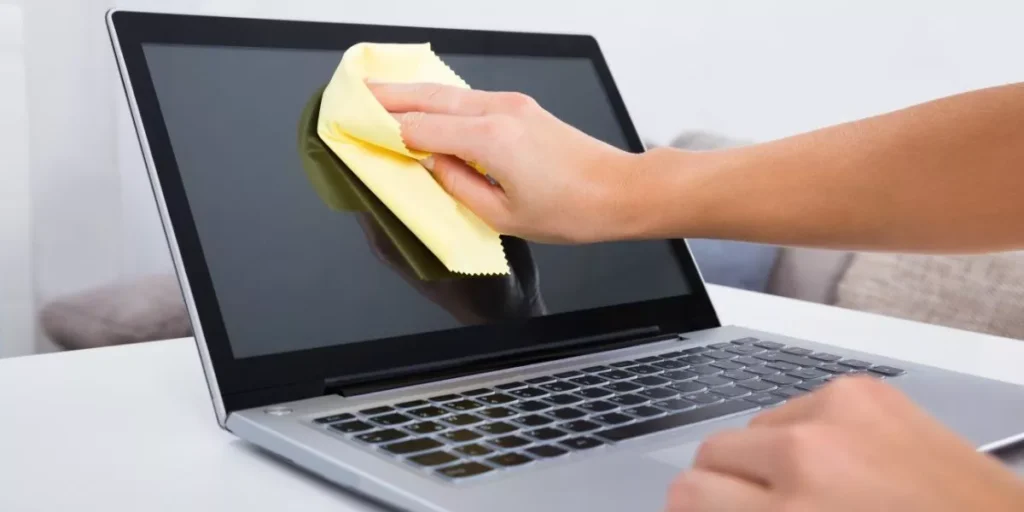
Grab a microfiber cloth, slightly dampen it with water or a mixture of equal parts water and vinegar, and then wring out any excess liquid. Gently wipe the screen in a back-and-forth motion, applying light pressure to remove smudges and dirt. Avoid using paper towels or rough cloths that can scratch the screen.
For stubborn spots, don’t press harder; instead, try using a specialized screen cleaner or a solution of diluted isopropyl alcohol. Make sure not to spray any liquid directly onto the screen to prevent moisture from seeping into the edges.
Finish by drying the screen with a dry part of the microfiber cloth to prevent streaks. Following these proper cleaning techniques will help keep your laptop screen looking clear and pristine.
Preventing Screen Damage
Wondering how you can safeguard your laptop screen from potential damage? To prevent screen damage, start by being mindful of how you handle your laptop. Avoid placing heavy objects on the keyboard when the laptop is closed, as this pressure can cause the screen to crack. Additionally, refrain from touching the screen with sharp objects or excessive force when cleaning it, as this can scratch or damage the display.
Another way to prevent screen damage is by using a screen protector. Screen protectors act as a barrier between the screen and external elements, such as dust, dirt, and scratches. Invest in a high-quality screen protector that fits your laptop screen size for added protection.
Furthermore, be cautious when opening and closing your laptop to avoid putting strain on the screen hinges. Opening the laptop from the center rather than from the sides can help distribute the weight evenly and reduce the risk of hinge damage. By following these preventive measures, you can prolong the life of your laptop screen and keep it looking like new.
Regular Maintenance Tips
Keep your laptop screen in top condition by regularly cleaning and maintaining it. To start, power off your laptop and unplug it before cleaning to prevent any damage. Use a microfiber cloth to wipe the screen gently in a circular motion to remove dust and fingerprints. Avoid using harsh chemicals or cleaning solutions, as they can damage the screen’s protective coating. For stubborn smudges, lightly dampen the cloth with distilled water and continue wiping. Remember to dry the screen thoroughly before closing your laptop.
In addition to regular cleaning, consider investing in a screen protector to prevent scratches and reduce glare. Adjust your laptop’s brightness and contrast settings to suitable levels to prolong the screen’s lifespan. When not in use, close the laptop to protect the screen from accidental damage. Lastly, keep your laptop away from direct sunlight and extreme temperatures to maintain optimal screen performance. By following these simple maintenance tips, you can ensure a clear and crisp display for years to come.
Trending Products